Create an MP4 video of a web page scrolling at a steady speed
Create an MP4 video of a web page scrolling at a steady speed. The tool opens the URL in headless Chrome, captures viewport screenshots at fixed scroll offsets, and streams those frames into ffmpeg.
The default output is 1080p: 1920x1080, 30 fps, H.264 MP4.
Getting Started With Codex
Open Codex and ask it to install the skill:
Install the web scroll video skill from https://github.com/upenn/web-scroll-videoRestart Codex after the install finishes. Then ask Codex to check your computer:
Check the web scroll video dependencies and install anything missing.Then describe the video you want in plain English:
Make a 60 fps 1080p video of https://zamechek.com. Pause 1 second, click Blog, scroll slowly to the bottom and back to the top, click the first Keynot post, then scroll slowly to the bottom. Show the cursor.Codex will create a cue sheet, render the MP4, and keep the cue sheet and video together so revisions are easy. To revise, ask for changes the same way you would give notes to an editor, such as “make the first scroll slower,” “hide the cursor,” or “add a two second pause before the click.”
Requirements
- Node.js 22 or newer
- Google Chrome, Chromium, or Microsoft Edge
- ffmpeg
No npm packages are required for this tool. Codex can check and help install these dependencies. npm is only needed if you are installing the Codex CLI itself or managing Node.js on a command-line machine.
Manual Install Reference
Manual install:
mkdir -p "${CODEX_HOME:-$HOME/.codex}/skills" git clone https://github.com/upenn/web-scroll-video.git \ "${CODEX_HOME:-$HOME/.codex}/skills/web-scroll-video"If using the Codex skill installer helper directly:
python3 "${CODEX_HOME:-$HOME/.codex}/skills/.system/skill-installer/scripts/install-skill-from-github.py" \ --repo upenn/web-scroll-video \ --path . \ --name web-scroll-videoRestart Codex after installing so the skill is discovered.
On macOS with Homebrew, missing dependencies can usually be installed with:
brew install node ffmpeg brew install --cask google-chromeOn a fresh Debian or Ubuntu VM, Codex can install the browser and video tools with commands like:
sudo apt-get update sudo apt-get install -y chromium chromium-sandbox ffmpeg git ca-certificates fonts-liberationIf you are testing from the command line on a Linux VM and need to install Codex first, install Node.js 22 or newer, then run:
sudo npm install -g @openai/codex codex loginIf Chrome is already installed somewhere nonstandard, pass its path with --chrome-path or set CHROME_PATH.
Command Line Quick Start
Capture the Wharton home page from this repository:
npm run capture:whartonThis writes:
wharton-scroll.mp4Capture any other URL:
npm run capture -- https://example.com --out example-scroll.mp4Run the CLI directly:
node src/scroll-video.mjs https://www.wharton.upenn.edu/ --out wharton-scroll.mp4Cue Sheets
Use a cue sheet when a video needs pauses, clicks, typing, zooms, or highlights. Cue sheets are sequence-style: each line happens after the previous one.
out: wharton-demo.mp4 width: 1920 height: 1080 fps: 60 cursor: off go https://www.wharton.upenn.edu/faculty-directory/ pause 1 highlight "Faculty Directory" for 1 scroll to 1800 over 4 pause 0.75 click "Departments" pause 1 type "finance" into "Search" pause 1 zoom to 1.2 over 1 scroll to bottom over 5Render it with:
node src/scroll-video.mjs --script wharton-demo.cueIn script mode, relative out: paths are resolved next to the cue sheet. If no out: is provided, the MP4 uses the cue filename with .mp4.
Or run the included example:
npm run capture:wharton-demoSupported cue actions:
go https://example.com pause 1.5 scroll to bottom over 5 scroll to 1800 over 4 scroll to "Visible text" over 4 scroll by 800 over 2 click "Visible text" click selector ".button-class" type "search terms" into "Search" press Enter wait text "Results" timeout 10 zoom to 1.2 over 1 highlight "Important text" for 1.5Notes:
- cursor: off is the default. Use cursor: on in the cue sheet or pass --cursor to show a rendered cursor.
- Keep cue-driven outputs beside their cue files. For cues/demo.cue, out: demo.mp4 writes cues/demo.mp4; omitting out: also writes cues/demo.mp4.
- Pauses capture live frames, so page animations continue during the pause.
- Highlights are temporary overlays around visible text, labels, or CSS selectors.
- scroll to "Visible text" over 4 scrolls until that text is centered in the viewport.
- If a click, type target, wait, or highlight fails, the tool writes an error report and screenshot next to the output file.
- Cue sheets may also be written as JSON for generated workflows, but .cue text files are easier to edit by hand.
Options
--script <path> Run a sequence-style cue sheet (.cue, .txt, or .json). --out <path> Output MP4 path. Default: scroll-video.mp4, or <script>.mp4 in script mode. --width <px> Viewport width. Default: 1920 --height <px> Viewport height. Default: 1080 --fps <number> Video frames per second. Default: 30 --speed <px/sec> Scroll speed in CSS pixels per second. Default: 480 --duration <seconds> Override speed and fit full scroll into this duration. --delay <ms> Extra wait after page load. Default: 1500 --warmup-step <px> Lazy-load warmup scroll step. Default: viewport height --chrome-path <path> Chrome/Chromium/Edge executable path. --ffmpeg-path <path> ffmpeg executable path. Default: ffmpeg --crf <number> H.264 quality, lower is better. Default: 18 --cursor Show a rendered cursor overlay in script mode. --storyboard <dir> Save one PNG screenshot after each script step. --keep-browser Leave the temporary Chrome profile directory in place. --help Show CLI help.Examples
Render a 20 second scroll:
node src/scroll-video.mjs https://www.wharton.upenn.edu/ \ --out wharton-20s.mp4 \ --duration 20Render at a faster steady scroll speed:
node src/scroll-video.mjs https://www.wharton.upenn.edu/ \ --out wharton-fast.mp4 \ --speed 900Render a mobile-shaped viewport:
node src/scroll-video.mjs https://www.wharton.upenn.edu/ \ --out wharton-mobile.mp4 \ --width 1080 \ --height 1920Use explicit binary paths:
node src/scroll-video.mjs https://www.wharton.upenn.edu/ \ --out wharton-scroll.mp4 \ --chrome-path "/Applications/Google Chrome.app/Contents/MacOS/Google Chrome" \ --ffmpeg-path /opt/homebrew/bin/ffmpegHow It Works
- Launch a temporary headless Chrome profile with DevTools enabled.
- Open the URL and wait for page load.
- In one-shot mode, scroll through the page once to trigger lazy-loaded content.
- In cue-sheet mode, run the sequence of pauses, scrolls, clicks, typing, zooms, and highlights.
- Capture PNG frames and pipe them into ffmpeg to produce an H.264 MP4.
One-shot scroll mode renders deterministic scroll positions, so the final video scrolls at a steady speed even if individual screenshots take different amounts of time to capture. Cue-sheet mode captures timed actions so page animations can continue during pauses and interactions.
Validation
Check the generated video metadata:
ffprobe -v error \ -select_streams v:0 \ -show_entries stream=width,height,r_frame_rate,duration,codec_name \ -of default=noprint_wrappers=1 \ wharton-scroll.mp4Expected defaults include:
codec_name=h264 width=1920 height=1080 r_frame_rate=30/1Troubleshooting
If Chrome is not found, pass --chrome-path or set CHROME_PATH.
If ffmpeg is not found, pass --ffmpeg-path or set FFMPEG_PATH.
If a page loads content slowly, increase --delay:
node src/scroll-video.mjs https://example.com --delay 4000If a page lazy-loads content only after smaller scroll increments, reduce --warmup-step:
node src/scroll-video.mjs https://example.com --warmup-step 400If the capture runs in a sandboxed environment, it may need permission to access the target URL and open a local DevTools port on 127.0.0.1.
If Chromium fails inside Docker with a namespace or sandbox error, test in a normal VM or use a Docker-only Chrome wrapper that launches Chromium with --no-sandbox. That flag is normally a container workaround, not the recommended desktop or VM path.
If a cue step fails, inspect the generated files:
<output-name>.error.json <output-name>.error.pngThe JSON report includes the failure message, current URL, intended output path, and screenshot path.
License
MIT. See LICENSE.
Схожі новини
Фильм ужасов "Гокум" в стиле Кинга собрал 87% на Rotten Tomatoes
U.S. seeks to deploy hypersonic missile for the first time against Iran
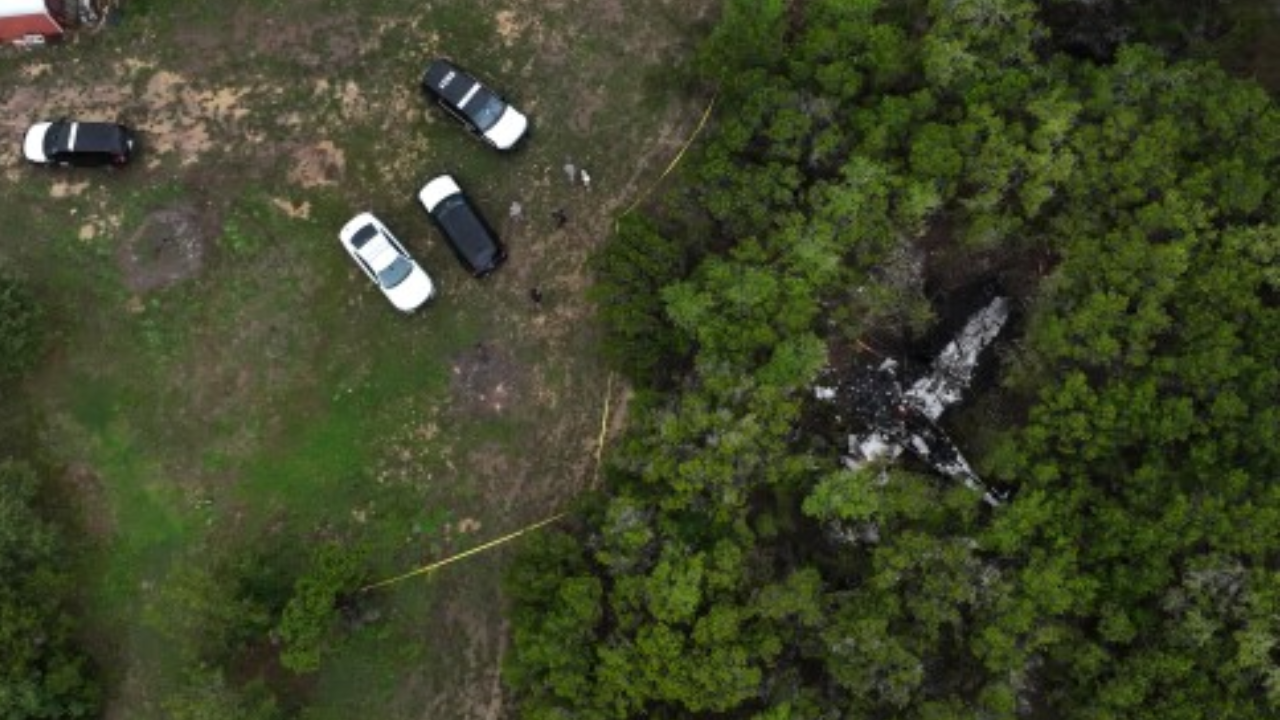
Plane carrying pickleball players crashes in Texas, five killed
